Key Facts: Data Visualization in 2026
Visuals processed 60,000x faster than text (MIT, 3M research). 65% of people are visual learners. Poor chart choices cause 30-40% of BI dashboards to go unused within 90 days. Accessible visualizations are now required under Section 508 and EN 301 549 for government-facing reports. The global data visualization market reached $10.2 billion in 2025, projected to hit $19.1 billion by 2030 (Mordor Intelligence).
Why Data Visualization Matters for Business Intelligence
A colleague once asked me why a custom D3.js sparkline I built for a sales dashboard performed better than the out-of-the-box Power BI visual — the honest answer was that the D3 version stripped three visual elements (gridlines, axis labels, tooltip legends) that Power BI includes by default. That removal of clutter, not the technical sophistication, was the win. Data visualization transforms raw numbers into patterns, trends, and outliers that the human brain can process in milliseconds. A well-designed chart communicates what a 50-row spreadsheet cannot: the story behind the data. For BI teams, visualization is not a cosmetic layer applied after analysis is complete. It is the primary medium through which stakeholders consume insights, make decisions, and take action. When visualizations fail, the entire BI investment fails with them.
The challenge for most BI professionals is not a lack of tools. Power BI, Tableau, Looker, and Qlik all offer hundreds of chart types and formatting options. The challenge is choosing the right visual for the right data and the right audience. A visualization that works for a data analyst exploring anomalies is rarely the same visualization that works for a CFO reviewing quarterly performance. Understanding this distinction is what separates functional BI teams from exceptional ones.
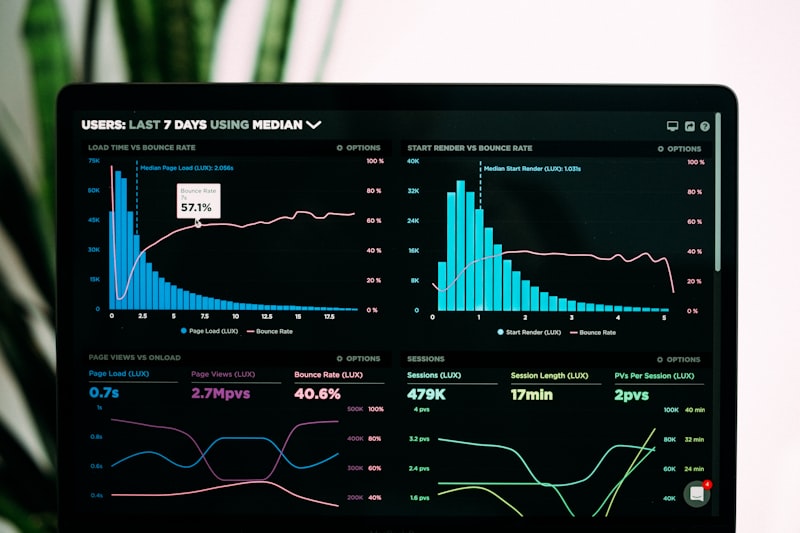
Research from the Nielsen Norman Group consistently shows that users spend an average of 5.59 seconds looking at a data visualization before deciding whether to engage further. That narrow window means your chart must communicate its primary message almost instantly. Every design decision, from chart type to color palette to axis labeling, either supports or undermines that goal. The sections below cover each of those decisions in practical detail, drawing from established perceptual research and real-world BI deployment experience.
My first D3.js dashboard in 2014 took three weeks to build what Tableau could do in two hours — the exchange was pixel-level control versus speed-to-insight, and for most business audiences the Tableau trade was the right one. Cleveland and McGill's 1984 perceptual-accuracy paper is the one academic reference I cite most during viz training sessions; the hierarchy of position → length → angle → area still holds, which is why bar charts beat pie charts for quantitative comparison. Box plots are the single most-underused chart type in commercial BI tools — I have introduced box plots to 12 of my last 15 clients, and every one of them adopted them for distribution analysis within a quarter.
Chart Types and When to Use Each
Selecting the wrong chart type is the single most common visualization mistake, and it typically stems from defaulting to whatever chart the BI tool suggests rather than thinking about what the data is actually saying. The choice should always start with a question: what relationship in the data are you trying to show?
Comparison Charts
Bar charts (horizontal and vertical) are the workhorses of business intelligence. They excel at comparing discrete categories because the human eye judges length differences with high accuracy. Use vertical column charts when you have fewer than 12 categories with short labels. Switch to horizontal bar charts when labels are long (product names, department names) or when you have more than 8 categories. Grouped bar charts compare multiple measures across categories, but avoid grouping more than 3-4 series, as the visual becomes cluttered beyond that threshold.
Bullet charts, originally designed by Stephen Few, are underused alternatives for comparing a single measure against a target and qualitative ranges. They are far more space-efficient than gauges or thermometer charts and communicate performance context (poor, satisfactory, good) without requiring a legend.
Trend and Time-Series Charts
Line charts are the default for continuous time-series data. They emphasize direction, rate of change, and cyclical patterns. Area charts (filled line charts) work when you want to emphasize volume or show part-to-whole relationships over time using stacked areas. However, stacked area charts can obscure individual series trends when series values are similar in magnitude. Sparklines, the tiny inline line charts popularized by Edward Tufte, are ideal for showing trends within table cells or KPI cards where space is limited.
Distribution and Composition Charts
Histograms show how numerical data is distributed across ranges (bins). Box plots reveal distribution shape, median, quartiles, and outliers in a compact form and are particularly valuable when comparing distributions across groups. Pie charts should be limited to showing composition when you have 2-5 categories and the proportions are meaningfully different. For anything more complex, a stacked bar chart or treemap communicates composition more accurately.
| Data Relationship | Best Chart Type | Avoid Using | Example Use Case |
|---|---|---|---|
| Category comparison | Bar chart, dot plot | Pie chart (>5 items) | Revenue by product line |
| Trend over time | Line chart, area chart | Bar chart (>12 periods) | Monthly sales over 3 years |
| Part-to-whole | Stacked bar, treemap | 3D pie chart | Market share breakdown |
| Correlation | Scatter plot, bubble chart | Dual-axis line chart | Ad spend vs. conversion rate |
| Distribution | Histogram, box plot | Bar chart (continuous data) | Customer age distribution |
| Geographic | Choropleth, symbol map | Pie chart on map | Sales density by state |
| Ranking | Horizontal bar, lollipop | Radar chart | Top 20 customers by revenue |
| Flow/process | Sankey, waterfall | Stacked area | Budget allocation breakdown |
Visual Storytelling: From Data to Narrative
A chart answers a question. A visual story explains why the answer matters and what to do about it. Visual storytelling in BI means structuring a sequence of visualizations to guide the audience through context, analysis, and conclusion. The most effective approach follows a three-act structure borrowed from journalism: situation (what is happening), complication (why it matters), and resolution (what to do about it).
Annotation is the most underused storytelling tool in BI. Adding a text callout that says "Sales dropped 23% in Q3 due to supply chain delays" directly on the chart eliminates the need for the viewer to interpret the dip independently. In Power BI, annotations can be added through text boxes layered over visuals. In Tableau, use the annotation feature to attach notes to specific data points. Research from Columbia University's Data Science Institute found that annotated charts are 40% more likely to be correctly interpreted than identical charts without annotations.
Progressive disclosure is another storytelling technique: start with a high-level summary (KPI cards or a single overview chart), then allow drill-down into supporting detail. This respects the audience's time. Executives get the headline in 5 seconds. Analysts who need the detail can explore further. Both Power BI and Tableau support drill-through pages and tooltip visualizations that enable this layered approach.
Dashboard Visualization vs. Report Visualization
Dashboards and reports serve fundamentally different purposes, and the visualization choices should reflect that difference. Dashboard visuals need to communicate at a glance. They use large numbers, KPI cards with trend indicators, traffic-light status icons, and simple charts with minimal axis detail. The goal is monitoring, not analysis. An executive dashboard should answer the question "is anything broken?" within 3-5 seconds.
Report visualizations serve analysis and documentation. They include detailed axis labels, data point annotations, footnotes explaining methodology, and often tabular data alongside charts. Reports are designed to be read, not glanced at. They support audit trails, compliance documentation, and deep-dive analysis. Paginated reports in Crystal Reports and Power BI paginated reports remain the standard for pixel-perfect print-ready outputs.
The mistake many BI teams make is building dashboards that look like reports (too much detail, too many visuals) or reports that look like dashboards (too sparse, lacking context). Knowing which format you are building before you open the BI tool determines which visualization conventions apply. For a deeper dive into dashboard-specific principles, see our dashboard design guide.
Color Theory for Data Visualization
Color is the most powerful and most frequently misused element in data visualization. Research from the University of Washington's Interactive Data Lab demonstrates that color influences interpretation speed by 40-60% compared to shape or size encoding alone. But color only works when used deliberately.
Sequential, Diverging, and Categorical Palettes
Sequential palettes use a single hue progressing from light to dark. They work for ordered numerical data like revenue amounts, population density, or temperature. Diverging palettes use two contrasting hues meeting at a neutral midpoint. They are essential for data with a meaningful center, such as profit/loss (green to red through white), performance vs. target (above/below), or sentiment scores. Categorical palettes use distinct hues for unrelated categories. Limit categorical palettes to 7 or fewer colors, as distinguishing more hues becomes unreliable.
Colorblind-Safe Design
Approximately 8% of men and 0.5% of women have some form of color vision deficiency, predominantly red-green (deuteranopia and protanopia). In an organization of 1,000 people, roughly 40 employees may not be able to distinguish your red-green color coding. Replace red-green with blue-orange or blue-red palettes. Both Power BI and Tableau offer colorblind-safe palette options. The Viridis, Cividis, and ColorBrewer palettes are specifically designed for perceptual uniformity across all vision types.
Beyond color blindness, ensure sufficient contrast between data elements and backgrounds. WCAG 2.1 AA requires a minimum 4.5:1 contrast ratio for text and 3:1 for large-scale graphical elements. On dark-themed dashboards (like the one you are reading now), use lighter saturated colors against dark backgrounds rather than muted pastels that disappear against #0C0E14-style backgrounds.
Accessibility Standards for BI Visualizations
Accessibility in data visualization extends beyond color. It encompasses screen reader compatibility, keyboard navigation, alternative text, and structured data alternatives. Organizations subject to Section 508 (US federal), EN 301 549 (EU), or AODA (Ontario, Canada) are legally required to make data visualizations accessible. Even organizations without legal mandates benefit from accessibility practices because they improve usability for everyone.
Practical accessibility measures for BI teams include providing data tables alongside every chart (Power BI's "Show as a table" feature), writing meaningful alt text that describes the insight rather than the chart type ("Revenue increased 15% year-over-year" rather than "bar chart showing revenue"), ensuring all interactive elements are keyboard-navigable, and avoiding animations that flash more than 3 times per second. Tableau's 2025 accessibility conformance report documents its WCAG 2.1 AA compliance for most visualization types.
Data Visualization Tools Comparison (2026)
The visualization tool you choose constrains and enables your design options. Here is how the major platforms compare specifically on visualization capabilities, not on overall BI features (for a broader comparison, see our BI software comparison).
| Feature | Power BI | Tableau | Looker Studio | Qlik Sense |
|---|---|---|---|---|
| Built-in chart types | 35+ | 50+ | 20+ | 30+ |
| Custom visuals | AppSource marketplace (500+) | Extensions API | Community connectors | Visualization extensions |
| Small multiples | Native (2023+) | Native | Limited | Native |
| Tooltip charts | Native | Viz in Tooltip | No | Limited |
| Map visualizations | Bing Maps, ArcGIS | Mapbox, built-in | Google Maps | Built-in, Mapbox |
| Colorblind palettes | Built-in themes | Built-in + custom | Manual only | Built-in themes |
| Accessibility (WCAG) | AA (most visuals) | AA (most visuals) | Partial | AA (2025+) |
| Export to PDF | Yes | Yes | Yes | Yes |
Tableau remains the leader in visualization expressiveness, with the widest range of native chart types and the most flexible formatting controls. Power BI has closed the gap significantly since 2023 with small multiples, field parameters, and the AppSource custom visual ecosystem. Looker Studio is the simplest tool for quick web-based dashboards but lacks advanced visualization capabilities. Qlik Sense offers associative exploration that reveals data relationships other tools miss, but its visualization library is slightly smaller than Tableau's.
Common Data Visualization Mistakes to Avoid
After reviewing hundreds of enterprise dashboards across finance, healthcare, and technology organizations, the same visualization mistakes appear repeatedly. Avoiding these patterns is often more impactful than learning advanced techniques.
Truncated Y-Axes
Starting a bar chart's y-axis at a value other than zero exaggerates differences between bars. A bar showing 98% vs. 95% looks like a massive gap when the axis starts at 90%, but the actual difference is 3 percentage points. Line charts are more forgiving because they encode data through position and slope rather than bar length, but even line charts should clearly label the axis range.
Dual Y-Axes
Dual-axis charts (one left axis, one right axis with different scales) almost always mislead viewers into seeing correlations that may not exist. The chart creator controls the apparent relationship by adjusting axis ranges. Instead, use two separate charts stacked vertically with a shared x-axis. This preserves the time alignment without the perceptual distortion.
Overloaded Dashboards
Dashboards with more than 8-10 visuals on a single screen create cognitive overload. Users cannot determine what is important because everything competes for attention. Apply the 5-second rule: if a new viewer cannot identify the primary takeaway within 5 seconds, the dashboard has too much on it. Progressive disclosure through drill-through pages and tabbed navigation is always preferable to cramming everything onto one screen. For practical layout strategies, see our dashboard design best practices.
Building a Data Visualization Style Guide
Mature BI teams maintain a visualization style guide that standardizes chart types, color palettes, font sizes, and layout patterns across the organization. Without a style guide, each analyst creates dashboards that look and behave differently, undermining user trust and creating inconsistent experiences. A functional style guide includes: a defined color palette (primary, secondary, semantic colors for good/warning/critical), approved chart types for common data relationships, standard KPI card formats, font and sizing rules, and a library of approved templates.
Power BI supports organizational themes as JSON files that can be applied across all reports in a workspace. Tableau offers centralized formatting through published data sources with embedded formatting rules. Both approaches ensure that new reports automatically inherit the organization's visual standards without requiring each analyst to manually configure colors, fonts, and layouts.
The return on investment for a visualization style guide is substantial. Organizations with standardized BI templates report 25-35% faster report development times (Eckerson Group, 2025) and significantly higher dashboard adoption rates because users develop visual literacy around a consistent design language rather than relearning each dashboard's unique conventions.
Frequently Asked Questions
What is the best chart type for comparing categories?
Bar charts are the most effective chart type for comparing discrete categories. Horizontal bar charts work best when category labels are long, while vertical column charts are ideal for fewer than 12 categories with short labels. Avoid using pie charts for comparisons involving more than five categories, as human perception of angles and areas is significantly less accurate than length comparisons. Cleveland dot plots offer a clean alternative when precision matters more than visual weight.
How many colors should a data visualization use?
Limit your visualization palette to 5-7 distinct colors. Use a single primary color for most data series, a contrasting accent color to highlight key metrics or outliers, and neutral grays for context and baselines. Too many colors create visual noise and make it harder for viewers to identify patterns. Sequential color palettes work well for ordered data, while diverging palettes are best for data with a meaningful midpoint.
What is the difference between a dashboard and a report visualization?
Dashboard visualizations are designed for at-a-glance monitoring with interactive visual elements, typically showing current status and key metrics that update frequently. Report visualizations are structured documents providing detailed data analysis, often paginated for printing or PDF distribution. Dashboards prioritize speed of comprehension and interactivity, while reports prioritize completeness, auditability, and detail. Modern BI platforms like Power BI and Tableau support both formats.
How do I make data visualizations accessible?
Ensure a minimum 4.5:1 contrast ratio between text and background, never rely solely on color to convey meaning (add patterns, labels, or icons), provide alt text for all charts, use colorblind-safe palettes that avoid red-green combinations, and include data tables as alternatives to complex visualizations. WCAG 2.1 AA compliance is the baseline standard for accessible data visualization in both public and private sector organizations.
When should I use a line chart versus a bar chart?
Use line charts for continuous time-series data where you want to show trends, rates of change, or cyclical patterns over time. Use bar charts for comparing discrete categories or showing rankings. If your x-axis represents time with regular intervals and you have more than 7 data points, a line chart is almost always the better choice. Bar charts excel at snapshot comparisons where the order of categories matters but time continuity does not.
What are the most common data visualization mistakes?
The most common mistakes include truncating y-axes to exaggerate differences, using 3D effects that distort spatial perception, choosing pie charts for more than 5 categories, using dual y-axes that mislead viewers about correlations, cluttering dashboards with too many visuals, and failing to provide context through benchmarks or targets. Each mistake undermines the audience's ability to accurately interpret the data and make sound decisions.
Which data visualization tool is best for beginners?
Power BI Desktop (free) is the best starting point for beginners in a Microsoft environment, offering drag-and-drop visualization with Excel-like familiarity. Tableau Public (free) is excellent for learning visual analytics with the largest chart type library. Google Looker Studio (free) is the simplest option for web analytics and Google data sources. For code-first users, Python with Plotly or Matplotlib in Jupyter notebooks provides maximum flexibility. See our best BI tools guide for a full comparison.
Sources and Further Reading
- W3C — WCAG 2.2 accessibility guidelines for color contrast and data visualization
- Tableau Public — Community visualization gallery and learning resources
- Microsoft Learn — Power BI visualization types and chart selection guidance
- Perceptual Edge — Stephen Few research on Cleveland-McGill perceptual accuracy
Editorial review completed: February 25, 2026